Manual
1. Install both apps
Mobile


2. Add your music
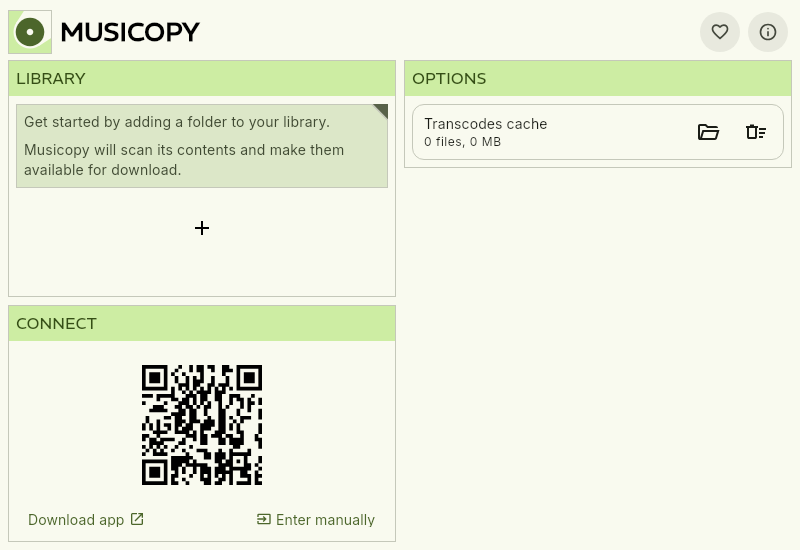
In the desktop app, add folders to your library.
Added folders will be scanned and their contents will be available for download in the mobile app.
Musicopy can automatically convert files to improve file size or compatibility, or transfer the original files. You can change this setting in the mobile app. More information
3. Connect your phone
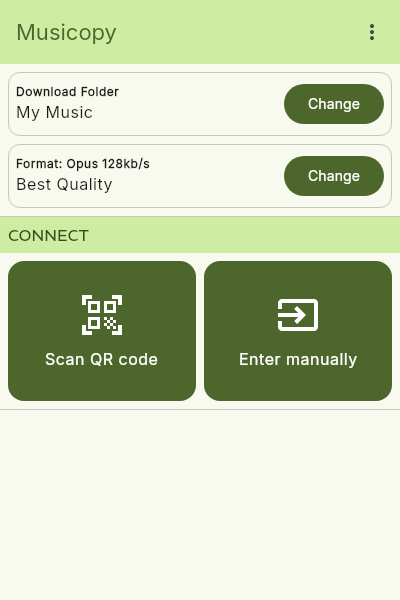
In the mobile app, scan the QR code shown in the desktop app to connect.
After clicking accept, Musicopy will create a direct end-to-end encrypted connection for fast and private transfers. Both devices can even be on different networks.
Next time, Musicopy will list recent connections to reconnect quickly.
4. Transfer your files
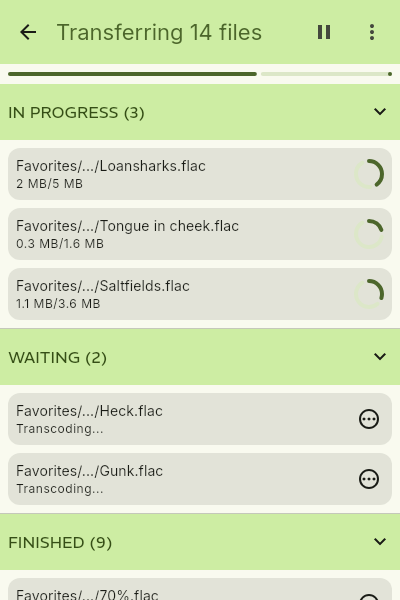
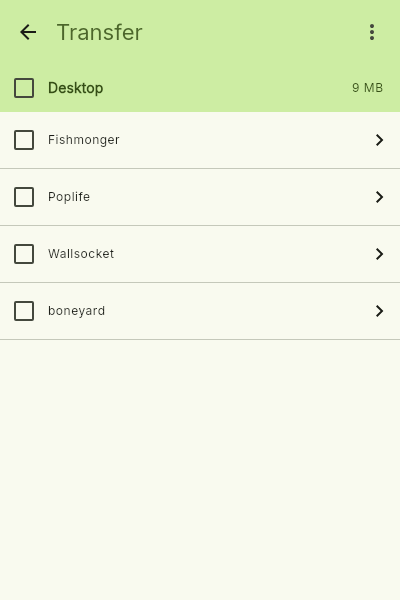
Choose files from your library and start the transfer.
Downloaded files will be saved to your chosen folder, mirroring your folder structure on desktop.
Next time, Musicopy will remember which files have already been transferred.
On Android, transfers continue in the background. On iOS, keep the app open until the transfer finishes.